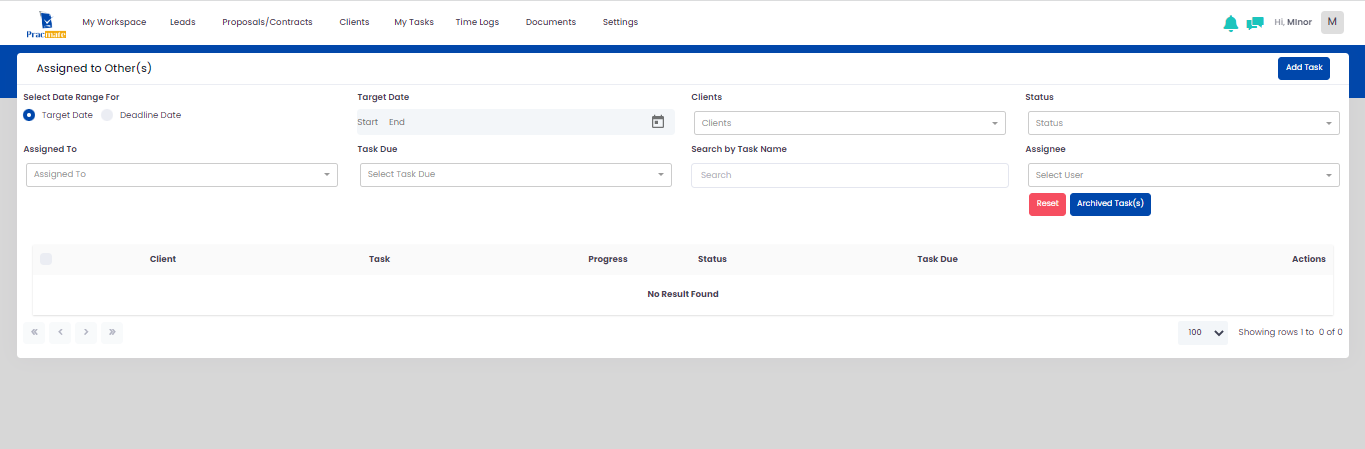
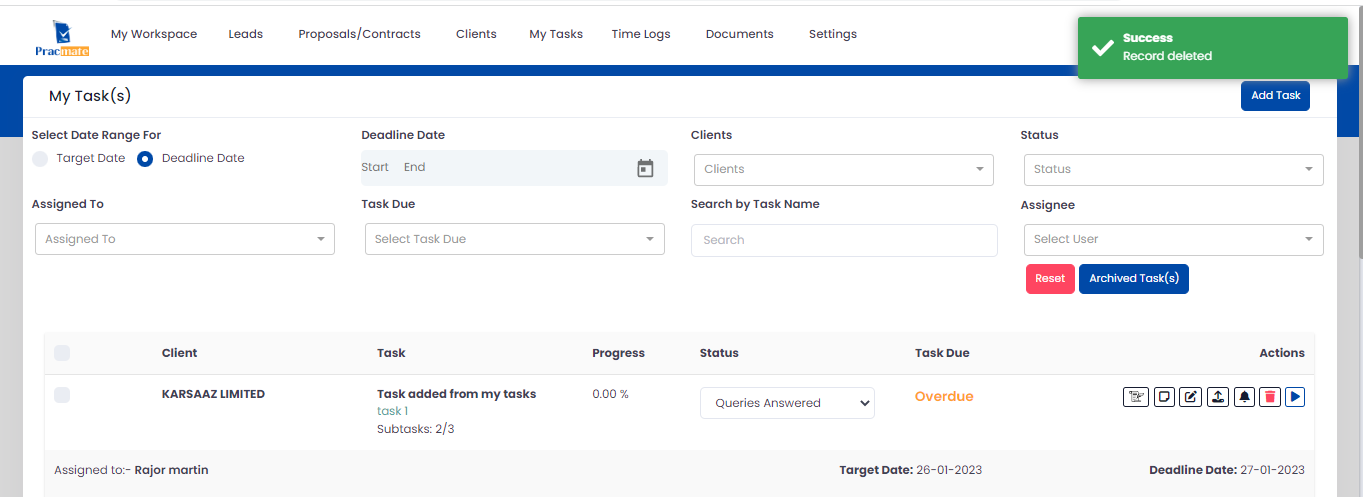
You can manage tasks from My tasks/Assigned to Others page.
It will display My Task(s) and Assigned to Other(s) in Menu.
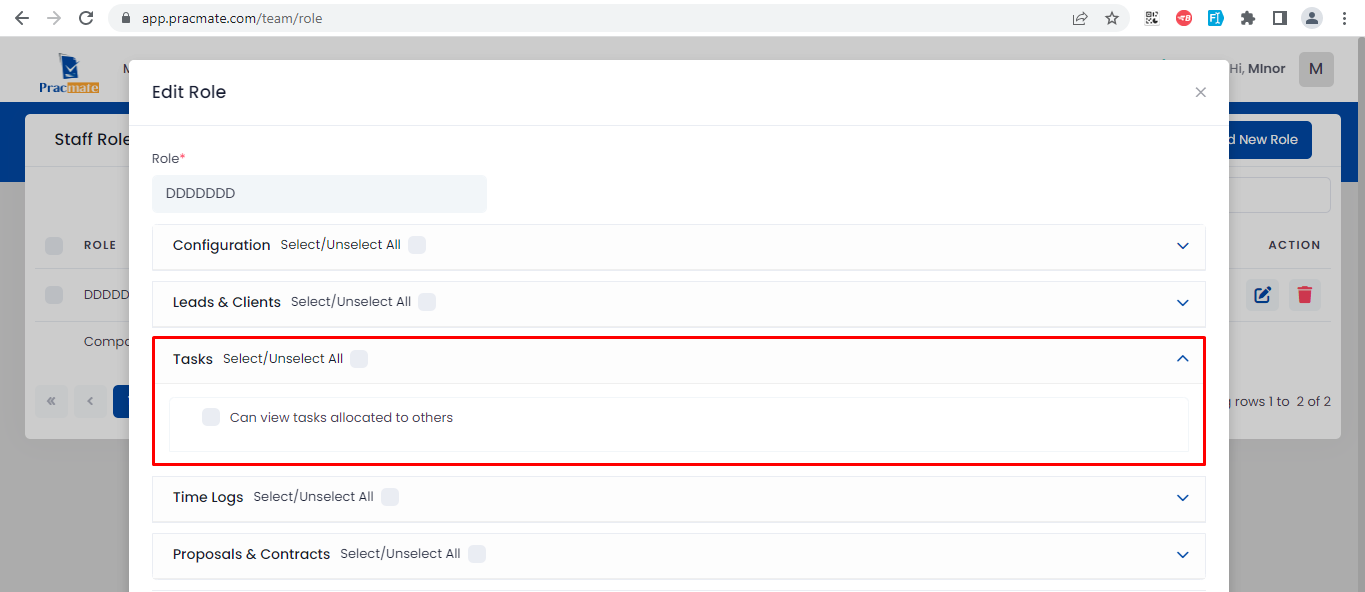
Assigned to Others Tasks will be display in menu if staff/user have given permission from settings.
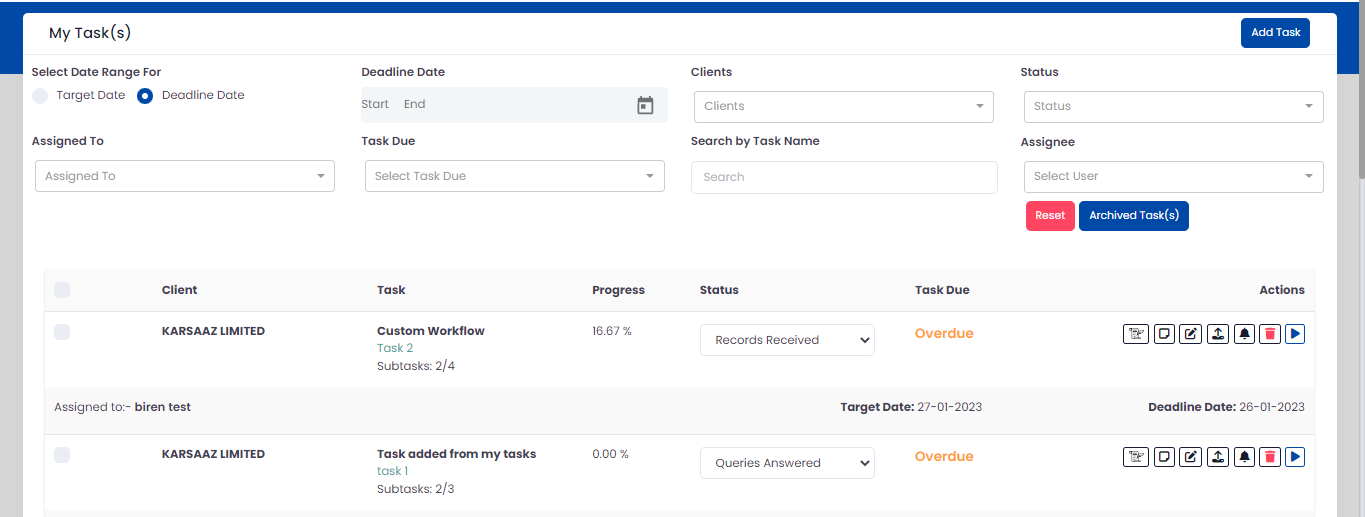
My Tasks: It will show only the particular task for that user only. Like. someone assigned task to you or you assigned task to someone that all will show in my tasks.
Assigned Tasks: It will show all the others task that is assigned from the other user. Like. 2nd user assigned task to 3rd user. That kind of tasks will show in assigned to others page.
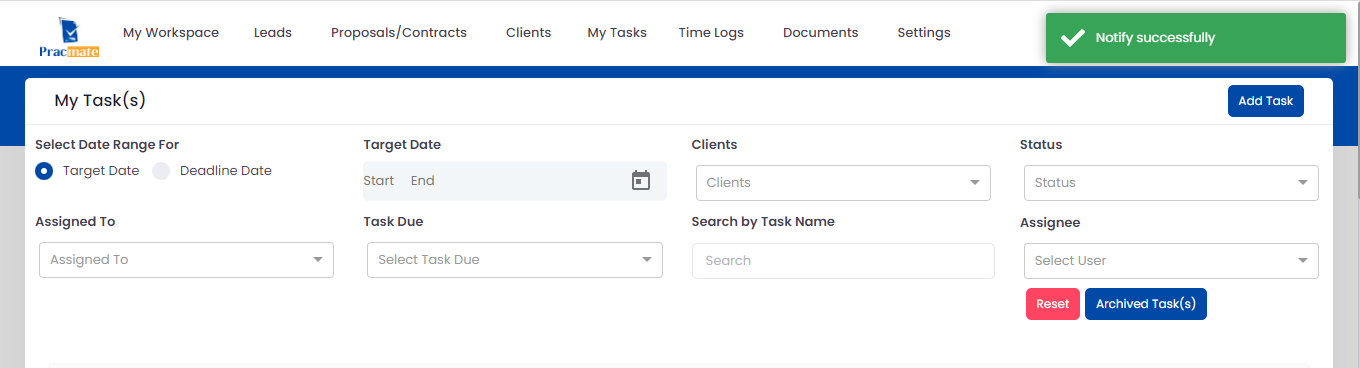
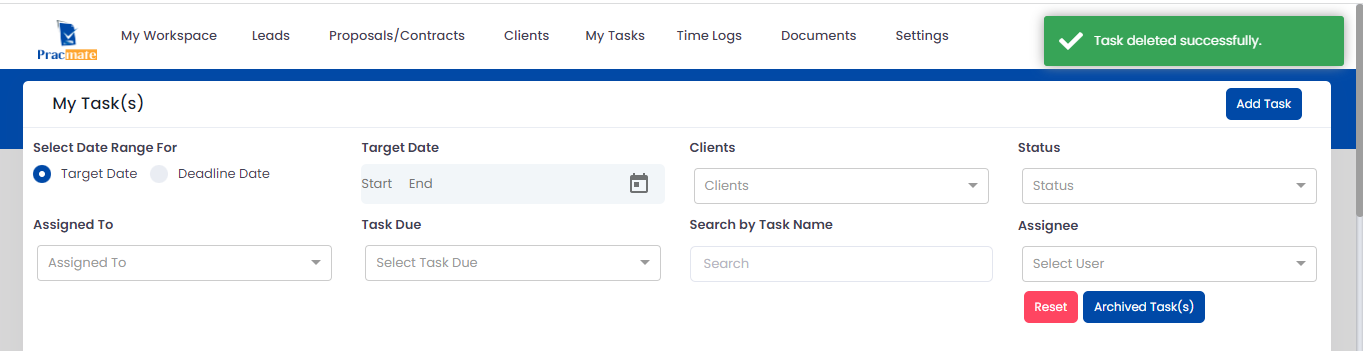
Filters will work according to selection. For Target Date & Deadline Date, first you have to select Date Range for & according to it, it will show “Target Date” or “Deadline Date” field.
Mainly it works on Target Date or Deadline Date, Target Date Means Is the must achieve date or fixed delivery date or deadline and Deadline means a time or date before which a particular task must be finished or a particular thing must be done.
Clients: It will display the list of all clients and based on selection it will display results.
Status: It will display the list of all status and based on selection it will display results.
Assigned To: It will display list of the staff user which task is assigned and based on selection it will display results.
Task Due: It will display Due and Overdue option in list and based on selection it will display results.
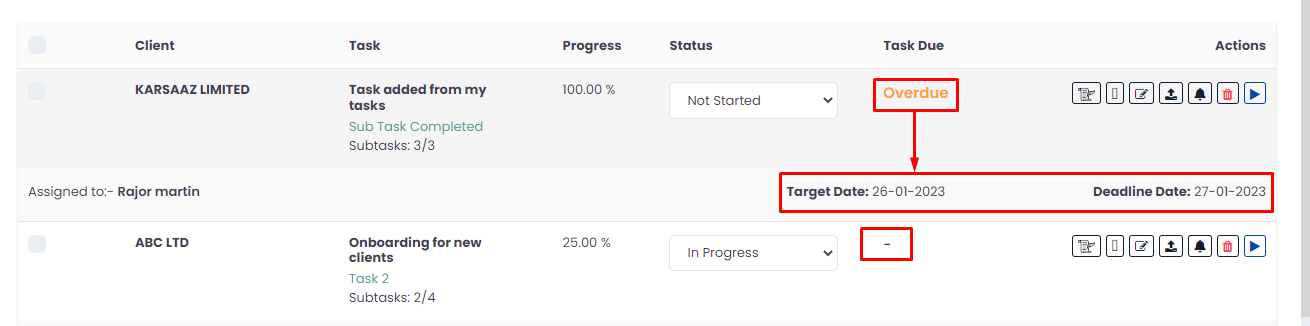
Due means 15, August 2023 to be the due date of a task means that the task is expected to be completed on or before 15, August 23:59:59.
Overdue means a status of task that means that the due date of the task has elapsed and the task hasn’t been completed by that moment.
Search by Task Name: User can search the task based on task name it will display results.
Assignee: It will display list of the staff user who have Assignee the task and based on selection it will display results.
Reset: If user have applied search filter then it will be reset it.
Archived Tasks: It will display all the deleted tasks in archived if there is no filter applied it will display it.
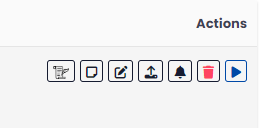
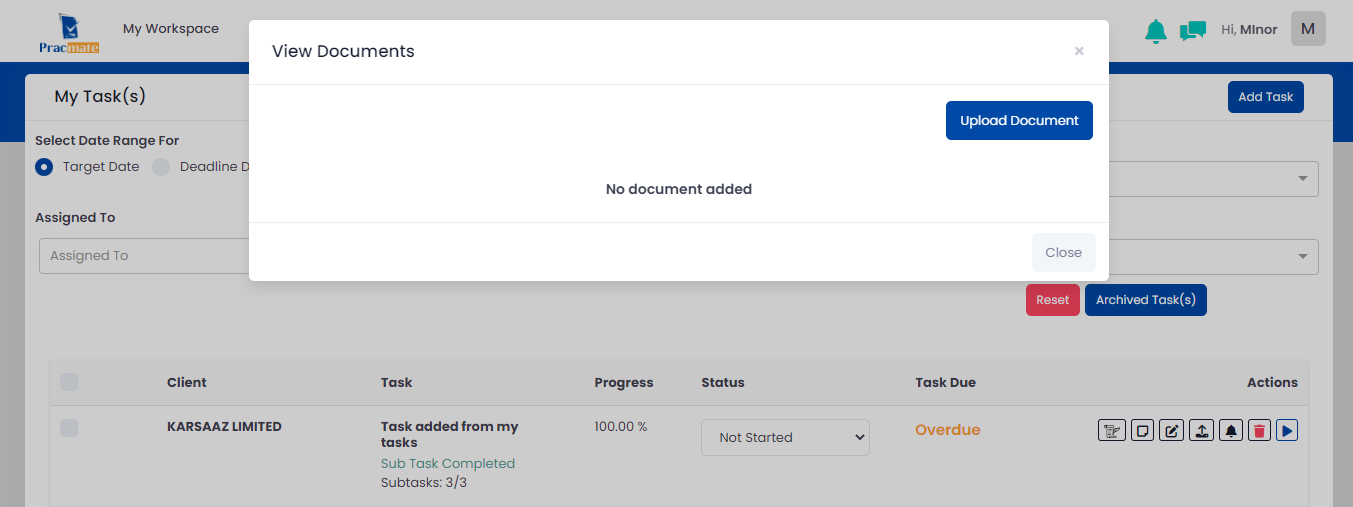
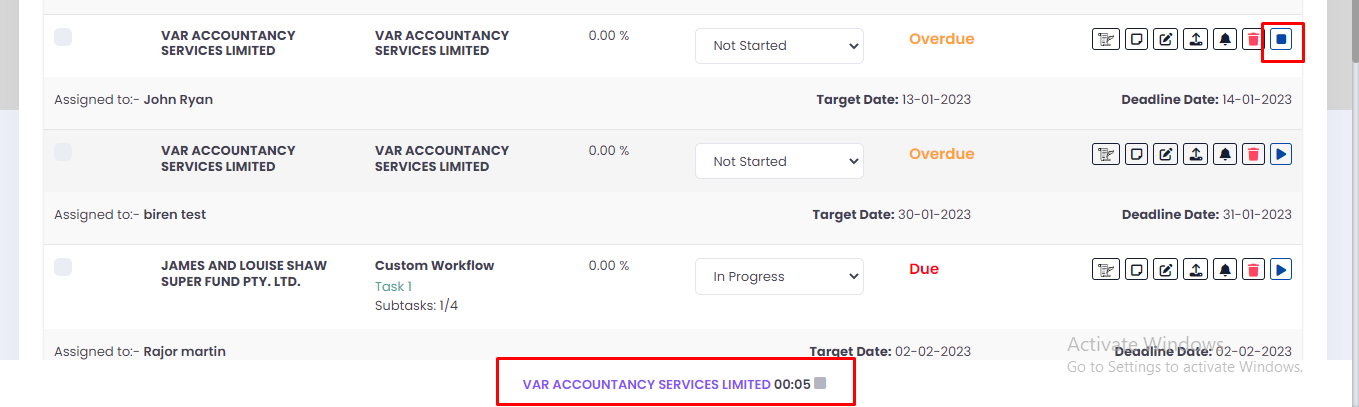
It will display checkbox selection, Client, Task Progress, Status, Task Due and Actions like View Log, Add Note, Edit task, Upload/View Document, Complete & Notify, Delete and Play/Pause option will display based on staff/role user permission.
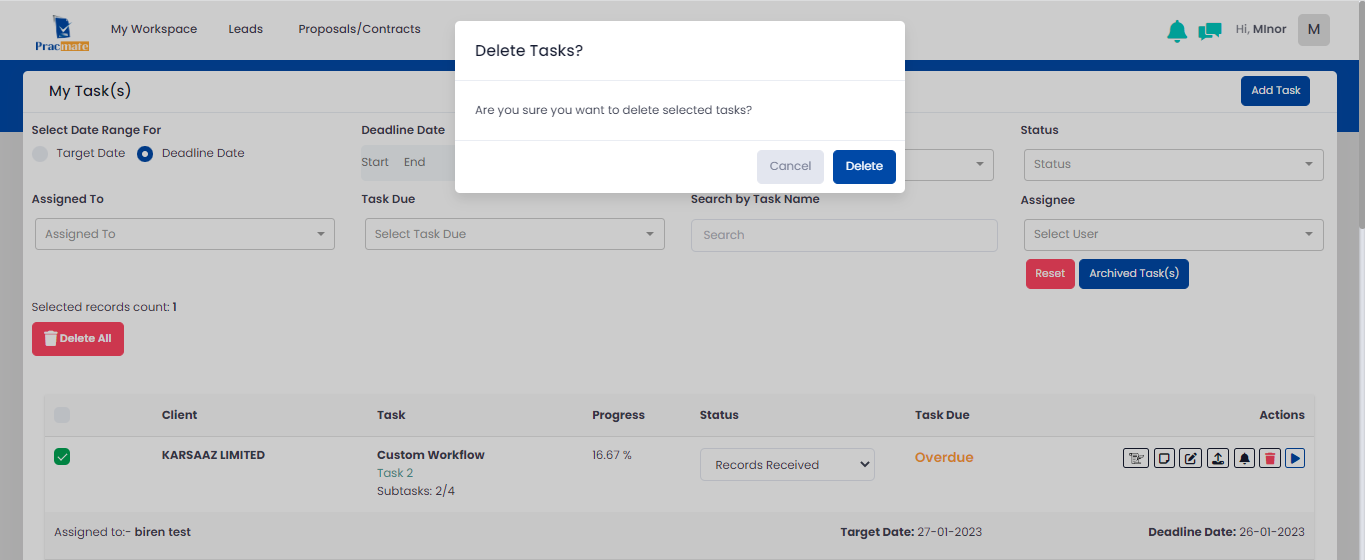
Checkbox selection: User can delete the multiple tasks and the deleted task will be display in archived.
Client: It will display company name on the page.
Task: It will display task name and if user have added sub tasks it will display sub task name and its status will be display if task is completed with number of count on subtasks.
Progress: It will be work according to your task completion. for ex. if you have 2 task with overall days’ count of 5 & 1st task will get 1 day to complete & 2nd will get 4 days to complete then when you complete 1st task then it will show “20%” in progress column. On reset button selection, it will again show “0.00%”same if you complete 2nd task without completing 1st task then it will show “80%” in progress column. When you completed both then it will show “100%”.
Status: It will be display status of the task and based on changing the status it will be display tasks.
Task Due or Over Due: If the task target and deadline date is gone then based on current date it will be considered as Overdue. If today is task’s deadline date, then it will show “Due” status.
Actions
View Log: It will display all the task activities in log.
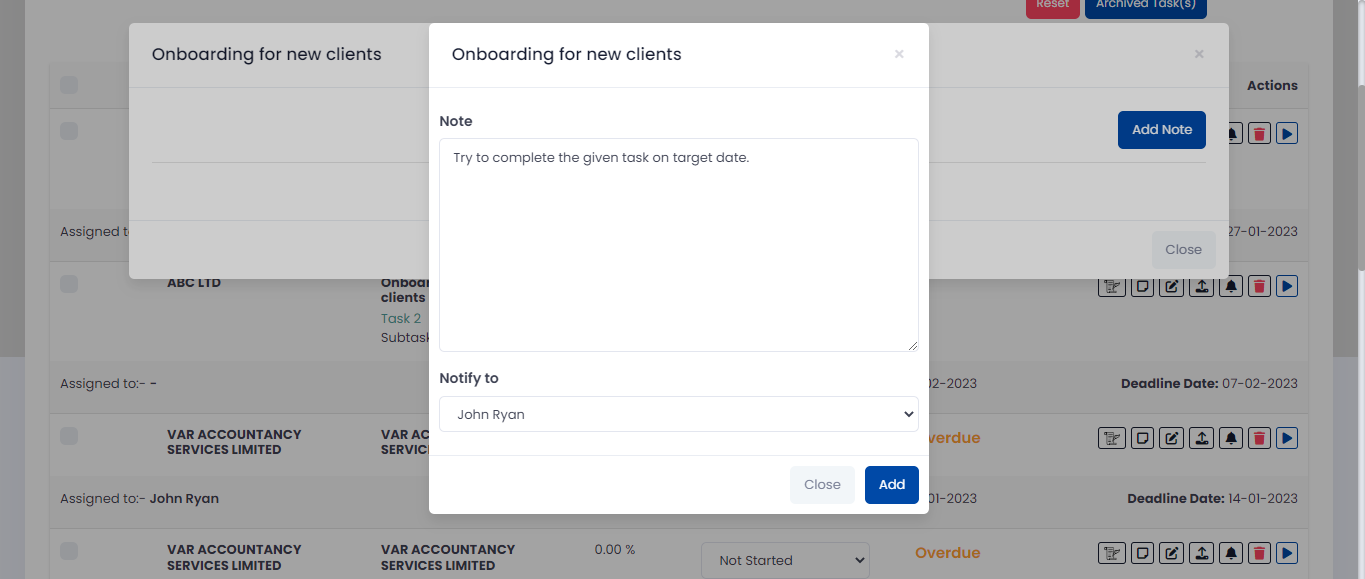
Add Note: User can view and add notes for the task.
Edit task: It will display all the task details and by making require change it will update the task.
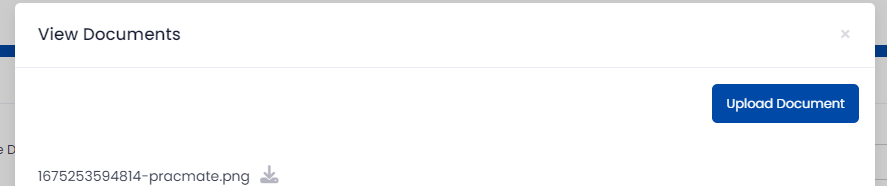
Upload/View Document: User can view and upload the documents for the task.
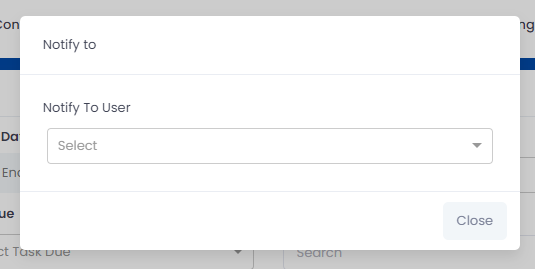
Complete & Notify: It will complete the task and notify to user.
It will display list of staff user and based on selection it will notify to user. It will send notification to selected user based on your permission selection given from my settings.
Delete: User can delete the task and deleted task will be display in archived.
Play/Pause: By pressing on play icon it will timer with pause option.
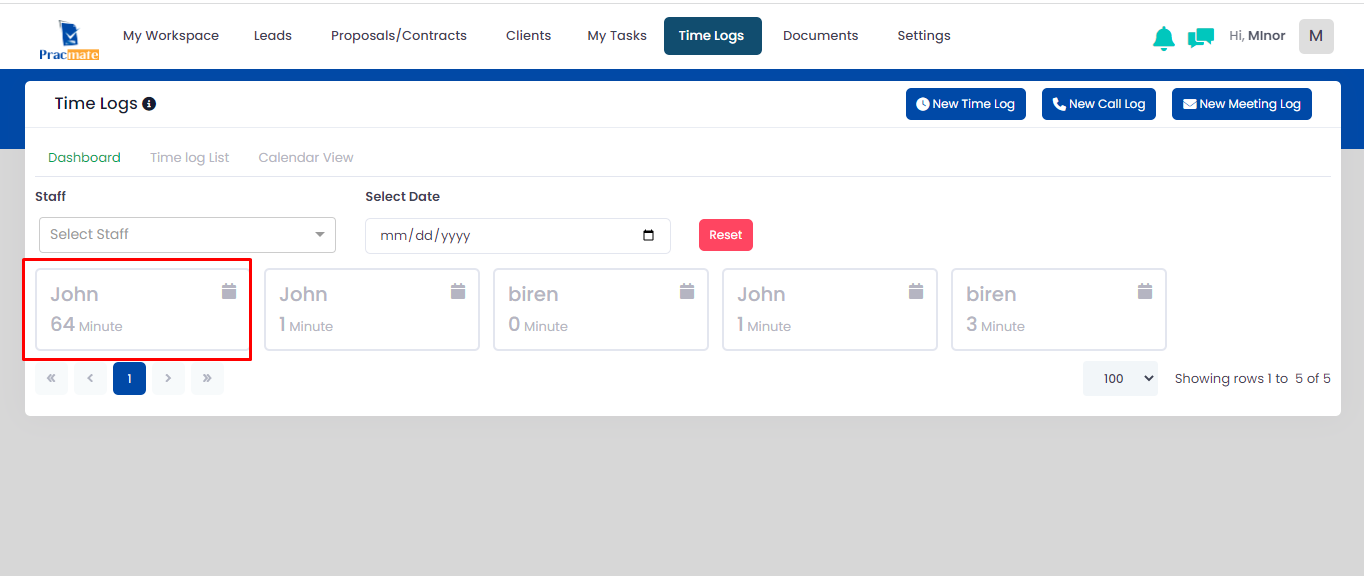
By pressing pause icon after sometime it will calculate the time and display details of the task and from there user can add the time log.
By making require change and click on Add Time Log it will add the time and display on the time logs page.
2How can I add new task ?
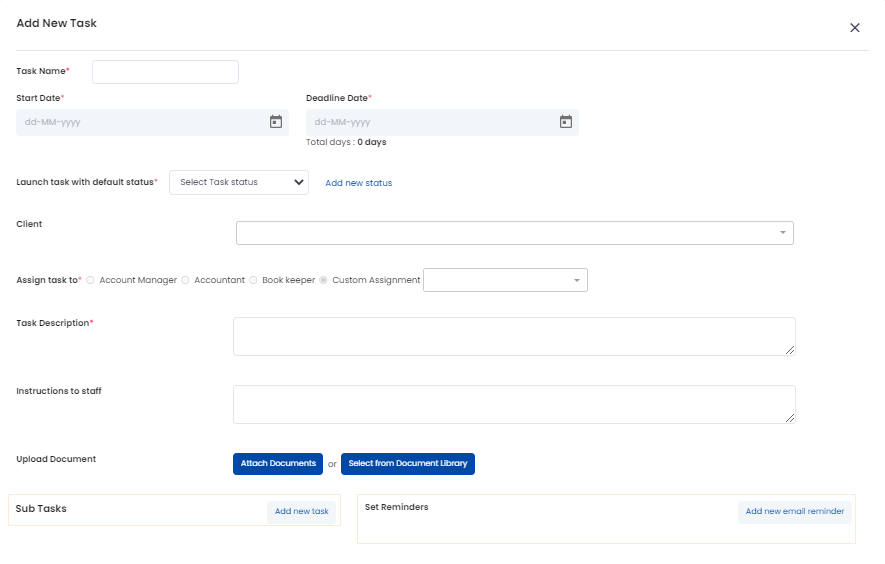
You can add task with clicking on “Add Task” button from listings page.
Add New Task
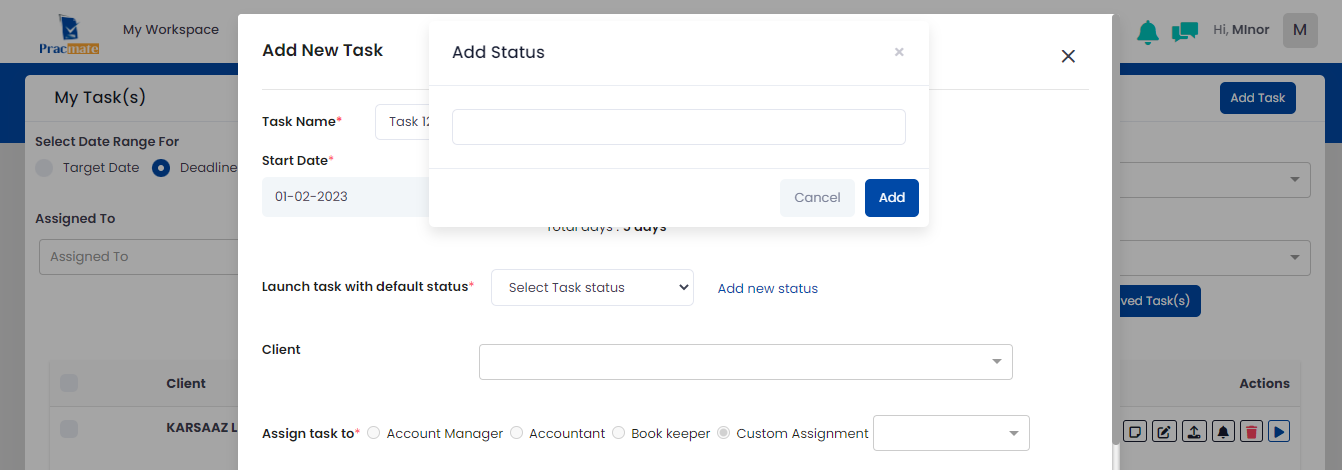
Task Name: It is mandatory field and it will display on listing page.
Start Date and Target/Deadline Date: It is mandatory field and Selection of the date, if user have selected 01/02/2023 as Start date then it will not allow selecting previous date. It will allow only same date and future date. Also it is vice versa Target/Deadline Date select is 05/02/2023 then it will not allow selecting future date in Start date field more then 05/02/2023.
Task with Default Status: It is mandatory field and it will display all status list and based on selection it will display it on listing page.
Add New Status: User can add new status from here.
Client: It will display list of all clients and based on selection it will assign the task.
Assign task to: It is mandatory field and it will display option Account Manager, Accountant, Book keeper and Custom Assignment and based on selection it will assign the task. If not selected particular client then it will show “Account Manager”, “Accountant” & “Book Keeper” radio button disabled.
Task Description: It is mandatory field and user can add task description here.
Instruction to Staff: If you want to give any instruction to staff it will allow from here.
Upload Documents: Attach Documents or Select from Document Library.
Select from Document Library will open my documents and user can select file from there.
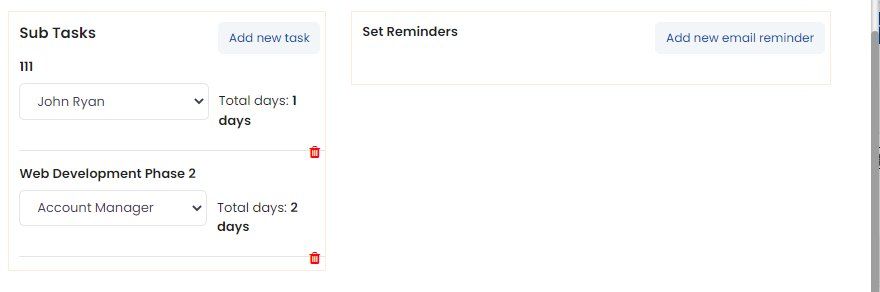
Sub tasks: User can add new sub tasks.
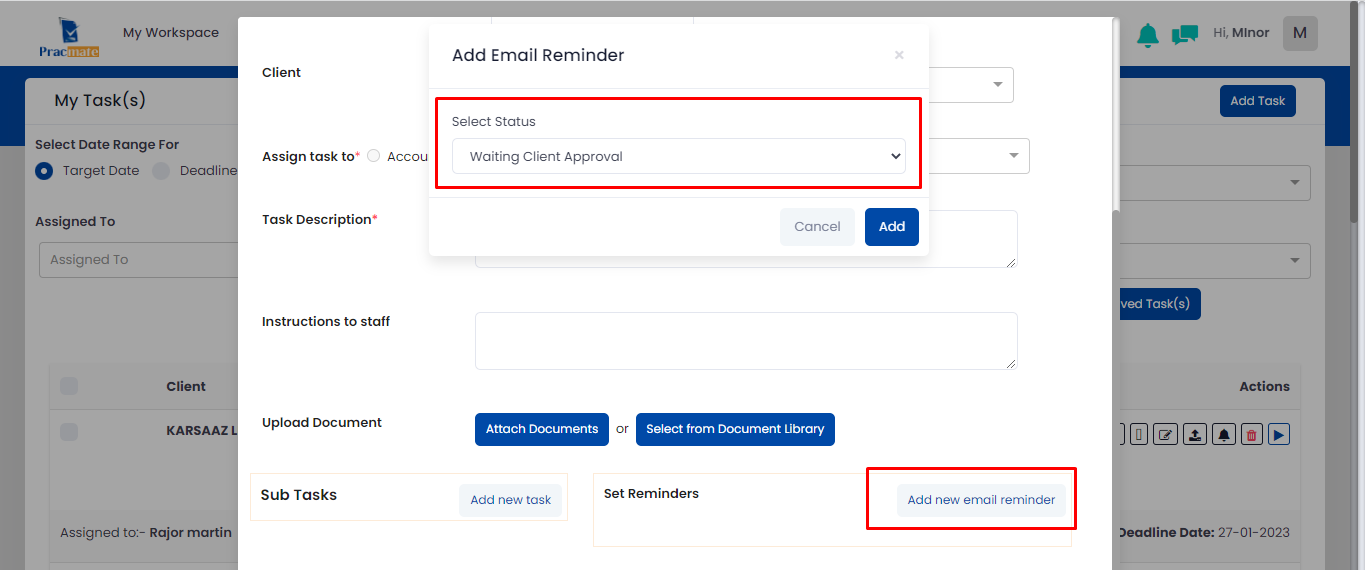
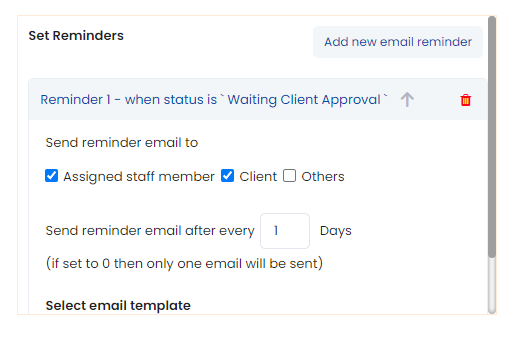
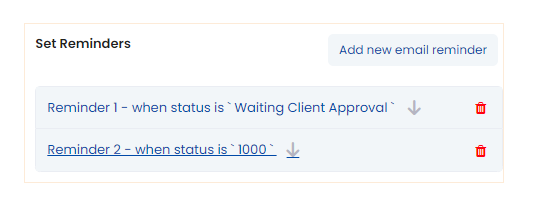
Set Reminders: It will add email reminder and based on selection of status it will send email.