
You will be taken to My Workspace page after registering, where you may view a summary of sent proposals, sent contracts, and signed contracts.

This section displays the tasks assigned to staff’s that have a due date of today.


Fill all the fields which is display below to create new task.



When you click on the View All label, you will be taken to a page where you can filter your tasks, edit your tasks, add notes on specific tasks, upload and view documents for specific tasks, send notifications for specific tasks, delete tasks, and add time logs for tasks.
When the user clicks on the view completed tasks label, he or she will see a list of all completed tasks.

The user can view all of the meetings that are scheduled for the current date.
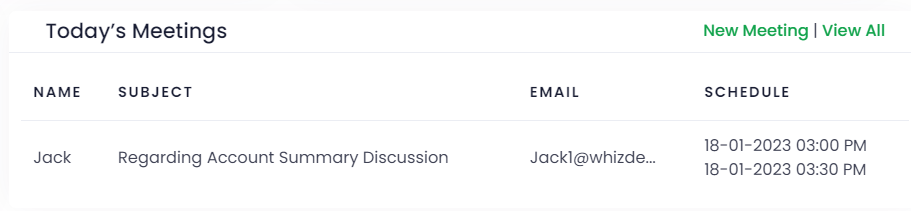
When you select New Meeting, you will be taken to the Meeting Schedule screen.

When you click the New Meeting button, you will be prompted to add a meeting schedule the meeting will be scheduled once you fill out the fields and click the Save button.

On this screen, you can see the five most recent ongoing tasks time logs of your staff members; you can also view all ongoing tasks time logs by clicking the “View All” button. All of these features are only available if you have a premium subscription.
