
You can create proposals, generate-view contracts with particular statuses. It has 2 tabs named with “Proposals” & “Contracts” By default, listings page will show blank in both tab. Proposals will show in proposals tab & contracts will show in contracts tab.
Proposals tab:
It will show particular status wise counts above respective labels.
In listings, you can see below columns:
On “Create Proposal” button selection, it will navigate to create proposal page.

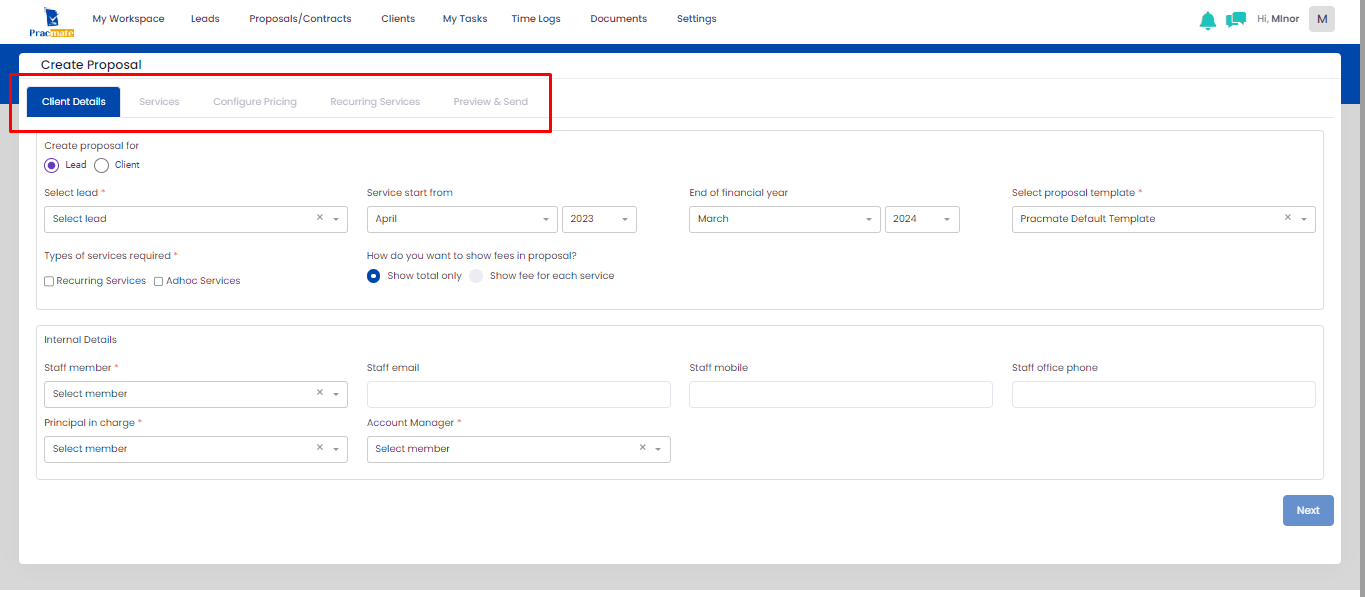
On “Create Proposal” button selection from listings page, you will navigate to create proposal page where you can see multiple tabs with containing multiple fields in each tab. By default, it will show “Client Details” tab selected.
Client Details tab: By default, it will show “Lead” radio button selected in “Create proposal for” fields. You can change leads from clients by selecting “Client” radio button. Based on your radio button selection, it will show “Select Lead” or “Select Client” dropdown field name below.
On particular lead selection, it will show extra field named “Business Type” besides selected lead. You can select particular month & year in “Service start from” & “End of financial year” fields. You can select particular proposal templates in “Select proposal template” field. By default, it will show default template as selected you can change it as per your requirements.
In “Types of services required” field, you can select checkbox based on your requirements to create proposal. For creating proposal for both recurring & adhoc services you need to select both checkboxes, on adhoc services checkbox selection, it will add adhoc services tab in wizard steps.
In “How do you want to show fees in proposal?” field, it will show 2 radio buttons, “show total only” & “Show fee for each service”, on “Show total only” radio button selection, it will show pricing only in totals in recurring/adhoc services tab. On “Show fee for each service” radio button selection, it will show pricing besides each services you have added.
In “Internal Details” section fields, you need to add required details in fields. On “Staff Member” field selection, it will auto get “Staff Position”,” Staff Email” & “Staff Phone” fields.
After adding all mandatory fields details, it will show “Next” button enabled.
If you have selected both “Recurring/Adhoc Services” checkboxes, it will show both tabs here to select particular service. By default, it will show recurring services. On “Adhoc Services” section selection, it will expand & will show particular services.
It will show services which you have added in manage services module. Services will be separated by categories (if category added). If you have selected roadmap services checkbox from configure pricing tool module, then it will show roadmap service label with checkbox to select. On “I” icon hover, it will show particular description which you have added in service.
When you select particular service then it will not show “Roadmap Service” checkbox. You can add particular services either in proposal or in roadmap service. Whether it is recurring services, adhoc services or roadmap services, all will show in particular client’s services tab after approving contract from client.


On next button selection from services tab, it will redirect to configure pricing tab. Here you can see particular fields for calculation based on your services selection & calculation which you have did when manage services. You can select particular option from fields based on your requirements. Pricing calculation will work based on your field selections.

Recurring Services:
Based on your price calculation on configure pricing tab, it will show pricing in recurring/adhoc services tab.
If you select “Show total only” in client details tab, it will show tick mark in recurring/adhoc services tab besides particular service name. Discount & Premium calculation based on percentages selection & total will also get changed according to percentages selection.
If you have added particular services in “Is taxable” from manage services, it will show pricing in “VAT Applicable Amount” totals but if you have not selected checkbox “Is Taxable” then it will count as “No VAT Applicable Amount” & that service’s pricing will show in “No VAT Applicable Amount” totals.
VAT percentages will be shown based on your selection from business setup flow. If you have not selected any VAT percentage then it will count as “0”.
You can set payment frequency by clicking on “Click to Change” label. When select, it will open popup to select frequency that you want. Pricing calculations will work according to payment frequency selection.


When you select other than yearly frequency type, it will show “Quarterly Cost” row with total calculated for quarterly.

On next button selection from services tab, it will redirect to configure pricing tab. Here you can see particular fields for calculation based on your services selection & calculation which you have did when manage services. You can select particular option from fields based on your requirements. Pricing calculation will work based on your field selections.
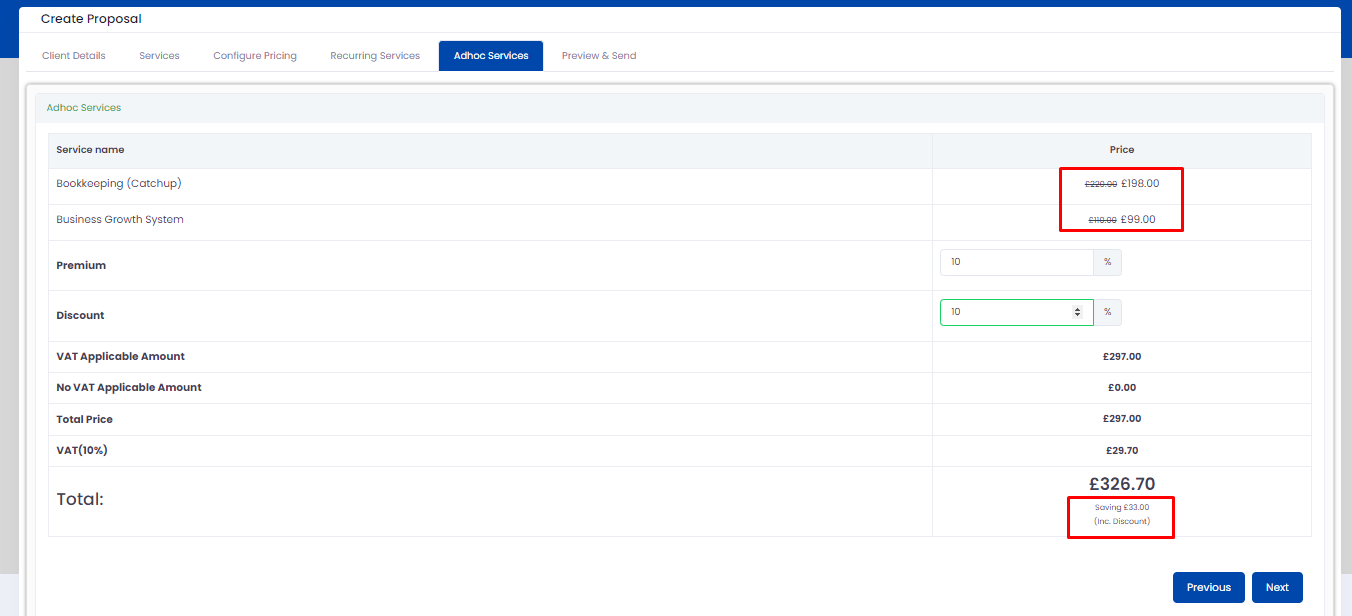
On “Next” button selection from adhoc services tab, it will navigate to Preview & Send tab. By default, it will show “Preview Proposal” tab open. You can review your proposal in pdf format. It will show same details which you have added while creating proposal.

In Preview Email tab, it will show particular lead/client’s email id & contacts email id in “To” field.
You can add particular email id in CC/BCC. In subject field, by default it will auto get subject based on your proposal selection but you can change it based on your requirements. In Attachment, it has been attached proposal pdf. Below attachment label, it will show textbox where it has been added default template. You can make changes in it.
On “Send Proposal” button selection, it will send proposal to client & show proposal in proposals listings with “Sent” status. On “Save as Draft” button selection, it will save proposal as draft & show in proposals listings with “Draft” status.

Once email sent to the email id which you have entered in “To” field. It will show link to open there. On that link selection, it will redirect to pricing page where it will show all services related pricing & at bottom it will show “Accept Proposal” button. On button selection, it will count as proposal accepted.
In contracts tab, on top it will show “Contracts sent” & “Contracts Signed” label with particular count. It will according to contracts sent/signed. If contract sent but not signed, then it will count as contracts sent & if signed then it will remove count from contracts sent & add count in contracts signed.
In listings, it will show below column name:


You can generate contract from proposals & contracts > Proposals tab.
It has 2 methods to generate contract.


Once you select “Generate Contract” label or “Mark as Won” label, you will navigate to below SS screen.
You can select LOE template from “Select letter of engagement template” field. It will show all your created LOE templates with default pracmate template.
You can select particular contact from “Add Signatories” field to whom you want to send contract.
You can add particular date in “Adhoc Fee Payment Date” & “Date of first instalment” fields.
In recurring services/Adhoc services, it will show services name with pricing calculation which you have selected while creating proposal. On “Generate Contract” button selection, it will show 2 options, 1. Send by E-Sign – It means it will send email through 3rd party software. From there client can easily sign documents. 2. Send by Email – It will send document on email where client needs to sign manually & revert back to you.

Once send contract to client, it will show “Contract generated successfully” toast message & in listings, status will get changed with “Won”.

In contracts tab, it will show that proposal as contract with status “Pending Signature” & it will increase count in “Contracts Sent”.
